The work, on the deck where it is.
Your vessel's General Arrangement, one drawing per deck. Jobs, equipment, stock, permits and survey findings pinned where they are on board, with the Safety Plan and the cabins on the same decks.
Drawing the decks is free.
Every vessel can set up its deck plans at no cost. Putting things on them is the Deck Plans add-on.
Free on every vessel
Your decks, drawn
- ✓Pick the General Arrangement from the vessel's documents, or upload a PDF or image
- ✓Draw a box round each deck, name it and set the order
- ✓Zones: named areas, and cabins
- ✓Frame numbers, from two marks on the GA's frame scale
Deck Plans add-on
Everything on them
- ✓Jobs, equipment and stock pinned on the deck
- ✓Permits to work and survey findings pinned where the work is
- ✓Safety Plan, deck by deck, exported as a PDF
- ✓Accommodation: who is in which cabin
- ✓QR labels, rounds and the new-crew walkthrough
- ✓Photos with arrows and notes, saved until there is signal
€80 / £70 / $90 per vessel per month, with a 90-day free trial on each vessel. Switching it off keeps every plan, pin and cabin. See pricing
[*]From your General Arrangement.
No redrawing. Pick the GA already filed in the vessel's documents, or upload it, and draw a box round each deck. Mark two frame numbers on the GA's printed scale and every pin reads the way yards and surveyors say it: “Main deck, frame 27, port”.
- ✓One drawing per deck, in your own order
- ✓Zones: named areas, and cabins ticked as Cabin
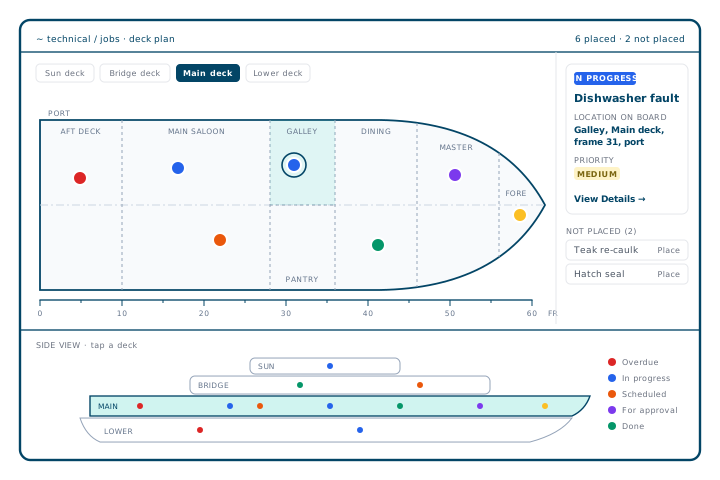
- ✓A job pinned inside a zone takes the zone's name as its location
- ✓A side view of the whole vessel to switch decks
- ✓Pinch, scroll or drag to move round a deck; tap a pin for its card
~ jobs · add-on
Jobs where they are.
Technical → Jobs has a deck plan view beside the list. Every job pinned on a deck shows where it is, and a job can be placed from its own page, from the plan, or from a phone photo. Jobs not placed yet are listed beside the plan.
- ✓Location on board on every job
- ✓Live permits to work on the same drawing, with Safety access
- ✓Yard work lists, tender packs and contractor lists sorted by deck
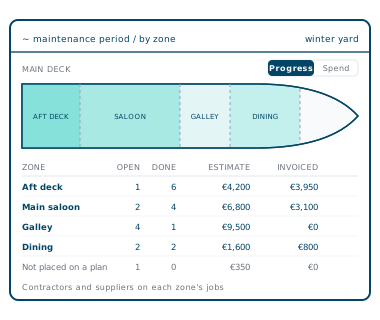
- ✓On a maintenance period, a By zone panel: open and done, estimate and invoiced, decks shaded by progress or spend
~ equipment & stock · add-on
Equipment and stock where they live.
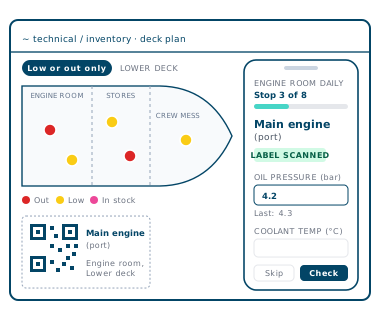
Equipment and Inventory each have a deck plan view. Place items one at a time, or work through the unplaced list in turn. Stock pins are coloured by stock level, and anything placed shows its zone and deck in search.
- ✓Stock pins: red out of stock, yellow low, pink in stock
- ✓Low or out only, to see what needs ordering
- ✓QR labels on A4 sheets of 21, to print and scan
- ✓Rounds: a route of stops walked on a phone, each proven by scanning its label, with readings logged against the equipment
~ safety plan · add-on
The Safety Plan, drawn from the register.
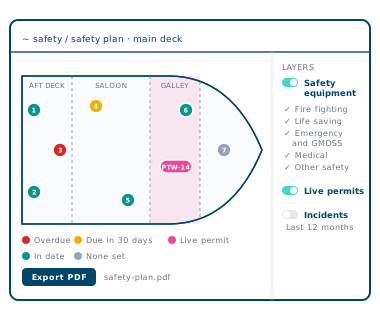
Safety → Safety Plan draws the safety equipment from the Equipment register, deck by deck, coloured by its next service or survey. Live permits to work show where the work is, and incident reports where they happened.
- ✓Fire fighting, life saving, emergency and GMDSS, medical — each group switches on and off
- ✓Red overdue, yellow due within 30 days, teal in date
- ✓Near-miss, hazardous occurrence and accident reports, zones shaded by how many fell in each
- ✓Export PDF: every pin numbered on the deck, then listed with its due date
~ accommodation · add-on
Who is in which cabin.
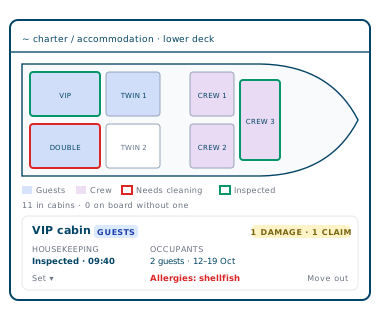
Draw the cabins once as zones. Charter → Accommodation for guests and Crew → Accommodation for crew show the same decks, each cabin shaded by who is in it, with its housekeeping status.
- ✓Put someone in a cabin, or move them out
- ✓Housekeeping: needs cleaning, cleaned, inspected
- ✓Guest preferences and allergies on the cabin card
- ✓A badge when a charter damage claim names the cabin
[*]also in the add-on
Everything with a place on board.
Survey findings by location
Each finding on a class or flag survey can be placed where it was raised. Open ones show on the jobs plan too.
Permits and incident reports
Permits to work, near-miss, hazardous occurrence and accident reports each have a Location on board card. Choose the deck and tap the spot.
Photos with arrows and notes
Mark up a job photo with arrows, circles and short notes. The original is kept, and photos taken with no signal are saved until there is signal.
New-crew walkthrough
The safety and critical equipment on the deck plans as a route to show a new crew member round, marked off by tapping Shown or scanning each label.
~ See it on your fleet
Your decks, with your work on them.
Drawing the decks costs nothing, and each vessel can try the add-on free for 90 days.