How to Add a Drill
Record a safety drill against the vessel — its category, frequency, scoring rubric, who took part and when it's due — so it shows up in your Safety reporting and statutory log.
BEFORE YOU START
Make sure you're on the correct vessel before adding a drill — drills are recorded against the vessel currently selected. Open SAFETY from the vessel dashboard, click DRILLS in the sidebar, and then the option to add a new drill. The required fields are Drill Category, Drill Type, Drill Title, Drill Frequency and Due Date; everything else can be filled in now or after the drill is run.
Step 1: Pick the drill category
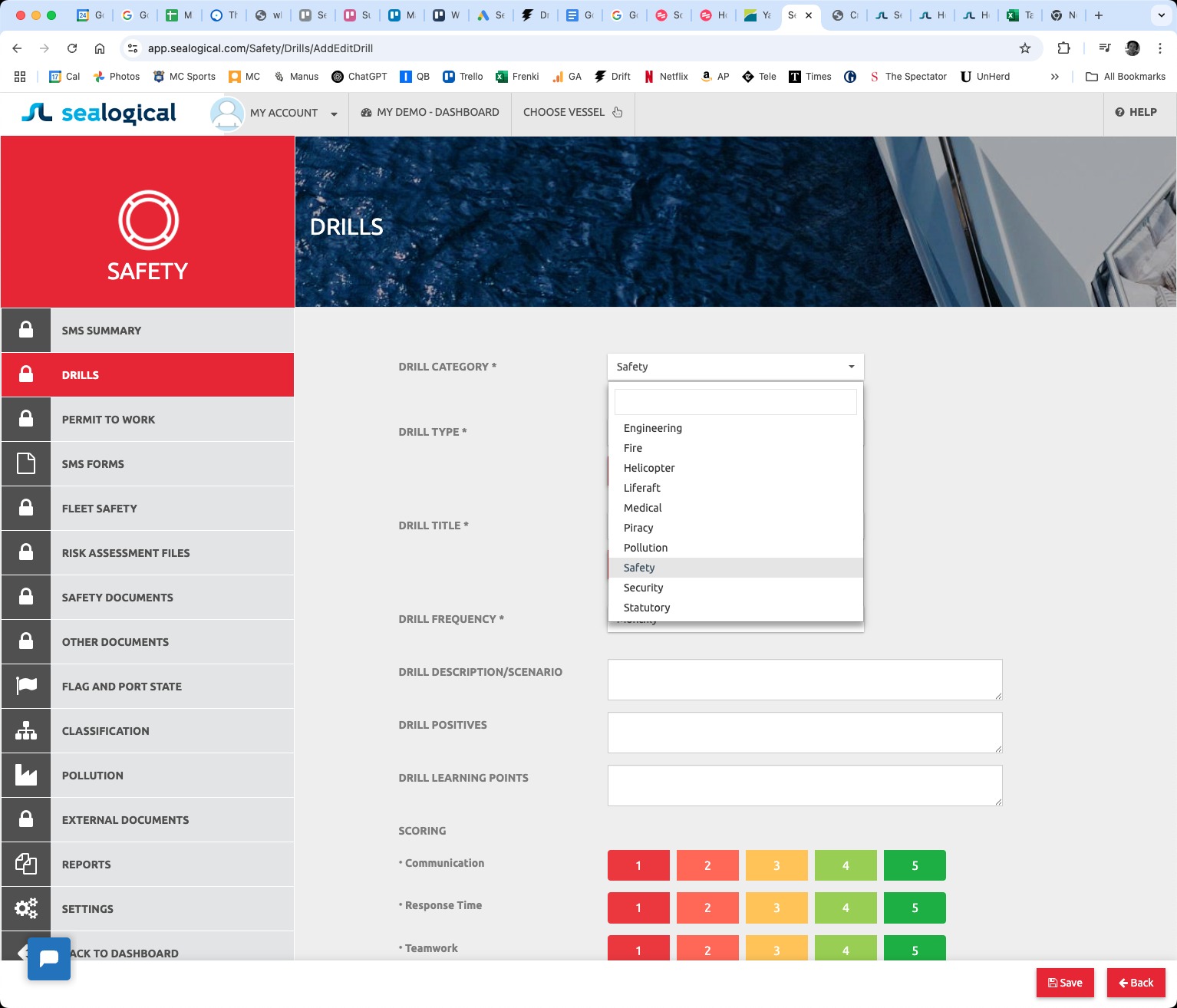
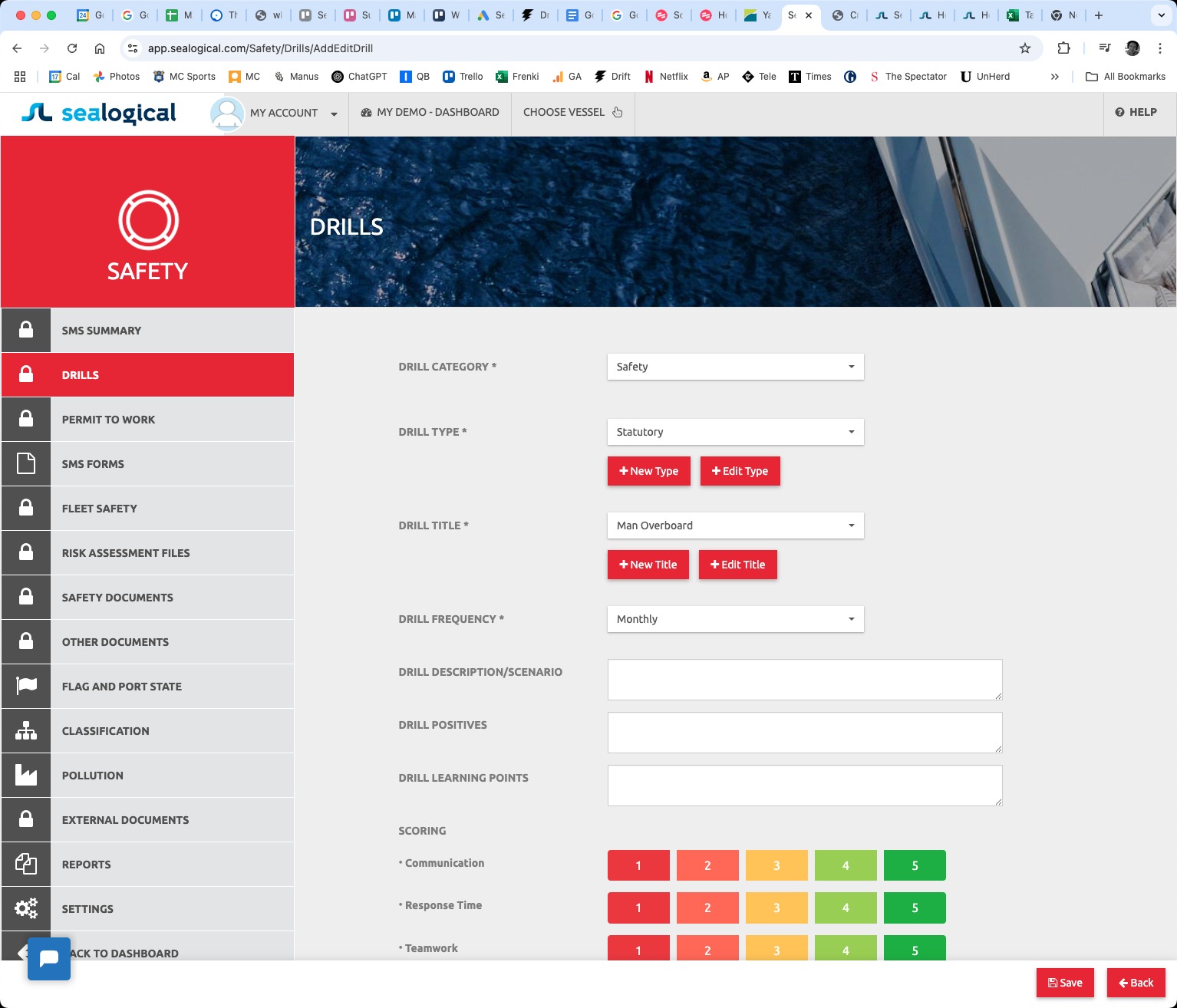
On the new drill form, open the DRILL CATEGORY dropdown. Pick the area the drill belongs to — Engineering, Fire, Helicopter, Liferaft, Medical, Piracy, Pollution, Safety, Security or Statutory. The category drives the rest of the form, so it has to be set first.
Step 2: Pick the drill type
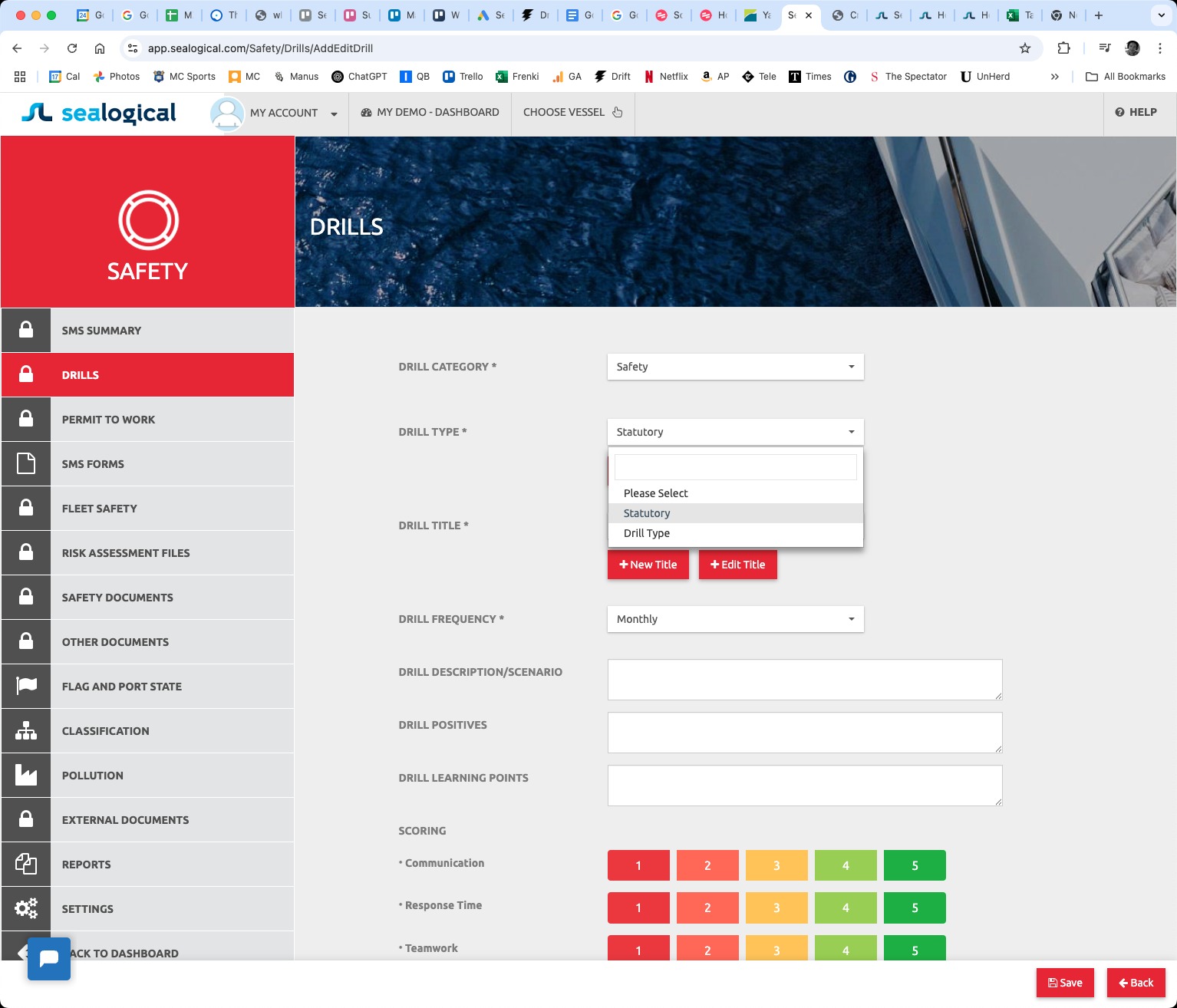
Open DRILL TYPE and choose the sub-classification (for example, Statutory). Use the + New Type or + Edit Type buttons next to the dropdown if the type you need isn't yet on your account — they let you add or rename types without leaving the form.
Step 3: Pick the title and set the frequency
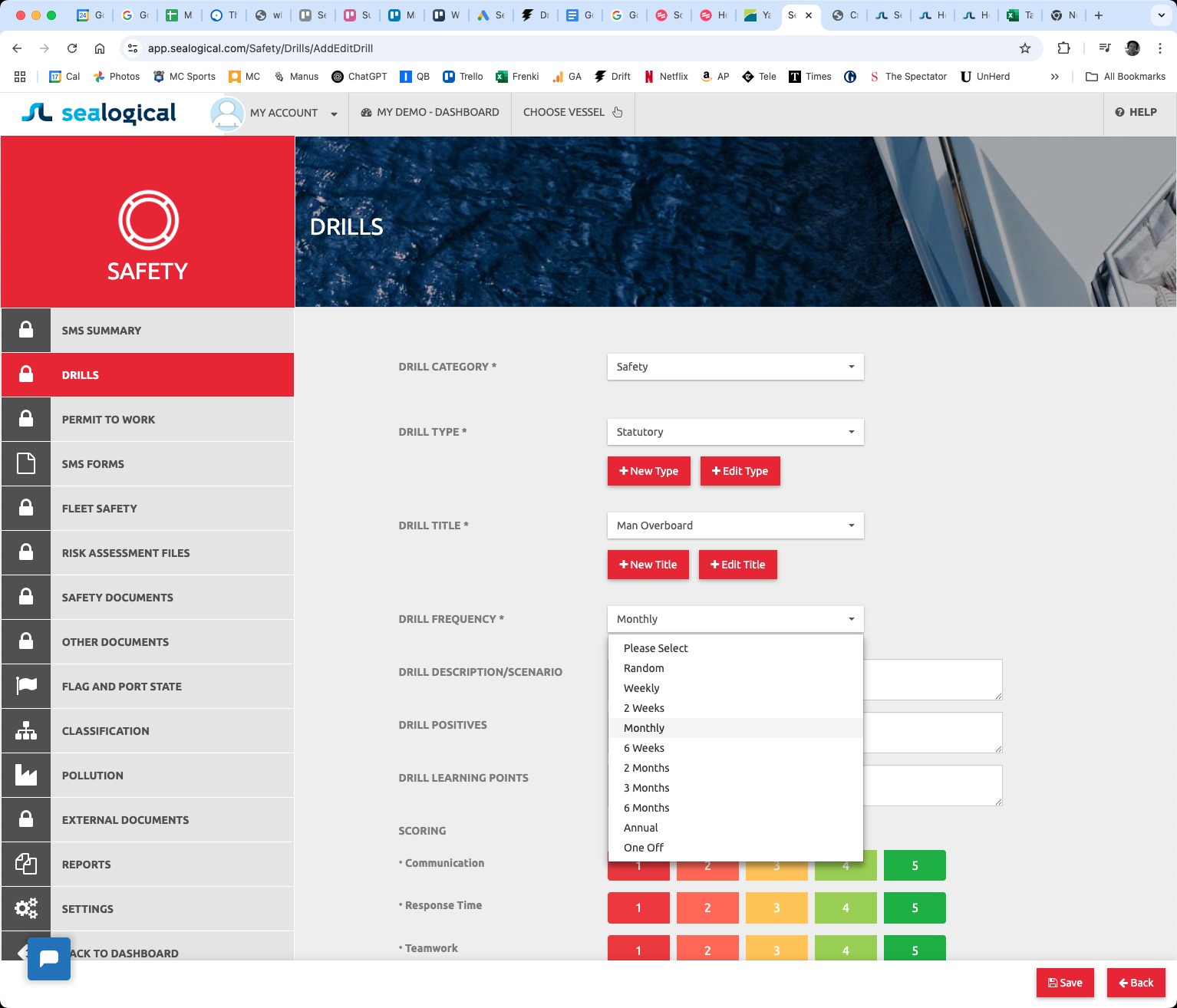
Open DRILL TITLE and choose the specific drill (Man Overboard, Abandon Ship, and so on). The + New Title and + Edit Title buttons work the same way as for Type. Then open DRILL FREQUENCY and pick how often the drill should be run — Random, Weekly, 2 Weeks, Monthly, 6 Weeks, 2 Months, 3 Months, 6 Months, Annual, or One Off. Below these dropdowns are optional free-text fields for DRILL DESCRIPTION/SCENARIO, DRILL POSITIVES, and DRILL LEARNING POINTS — fill them in now or after the drill is complete.
Step 4: Score the drill
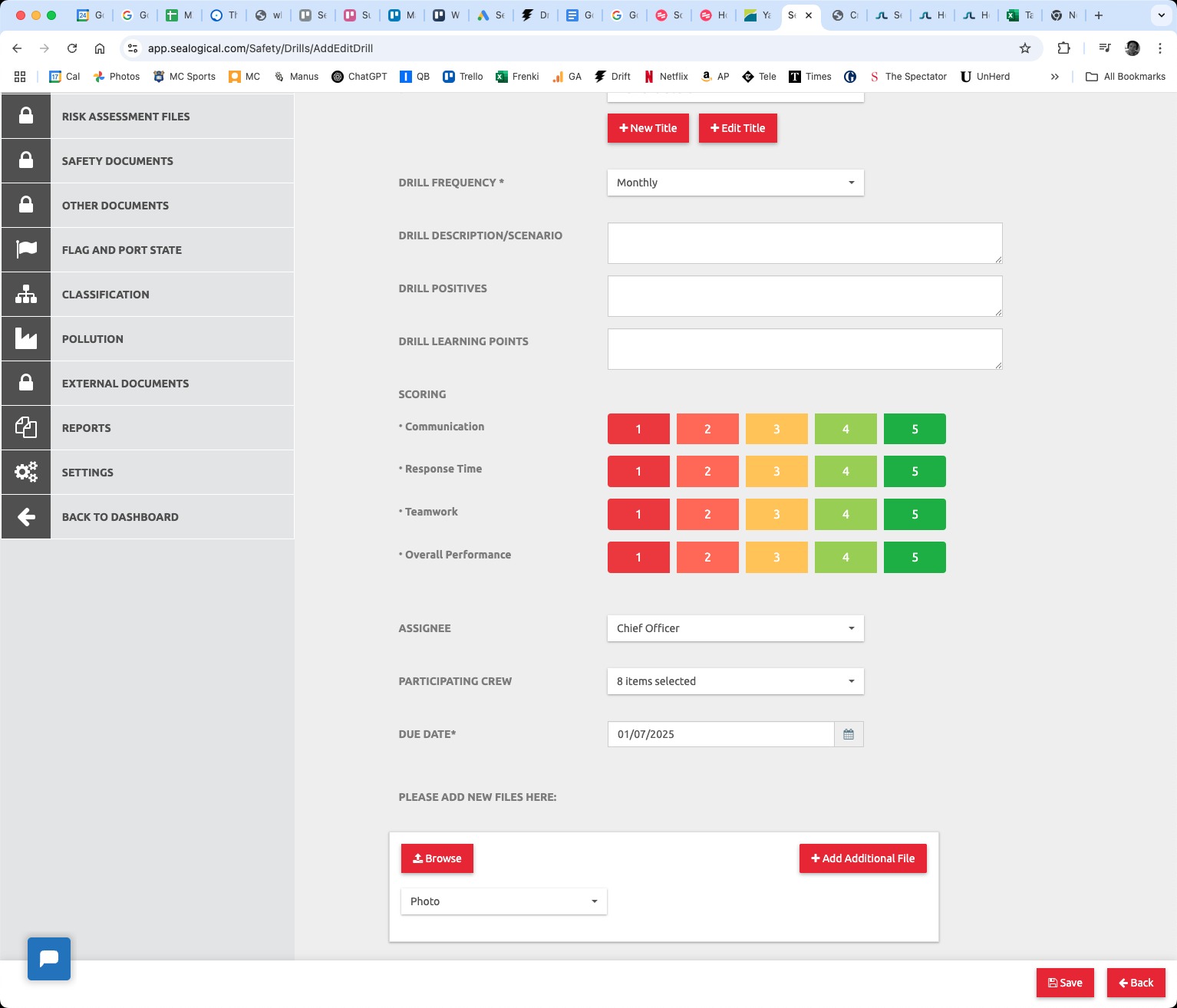
The SCORING block records performance across four metrics: Communication, Response Time, Teamwork and Overall Performance. Each is rated 1 (red) to 5 (green) — click the button for the score you want. Scoring is optional at the time of creating a scheduled drill — you can leave the rubric blank and come back to fill it in once the drill has been run.
Step 5: Assign the drill
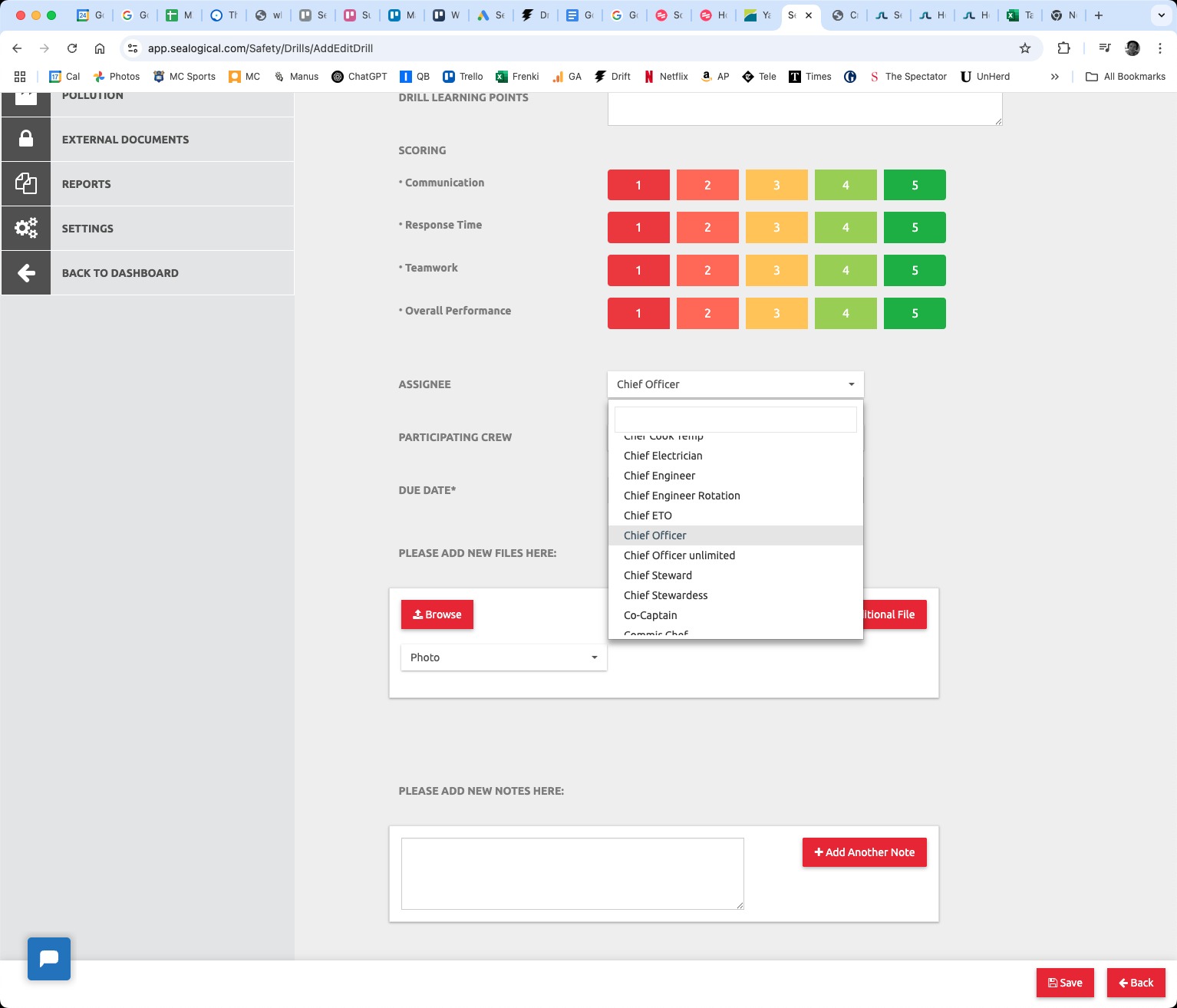
Open the ASSIGNEE dropdown and pick the person responsible for running and assessing the drill. The list shows all positions held on the vessel — typically a senior officer such as the Chief Officer, Safety Officer or Captain. Use the search field at the top of the dropdown to filter.
Step 6: Pick the participating crew
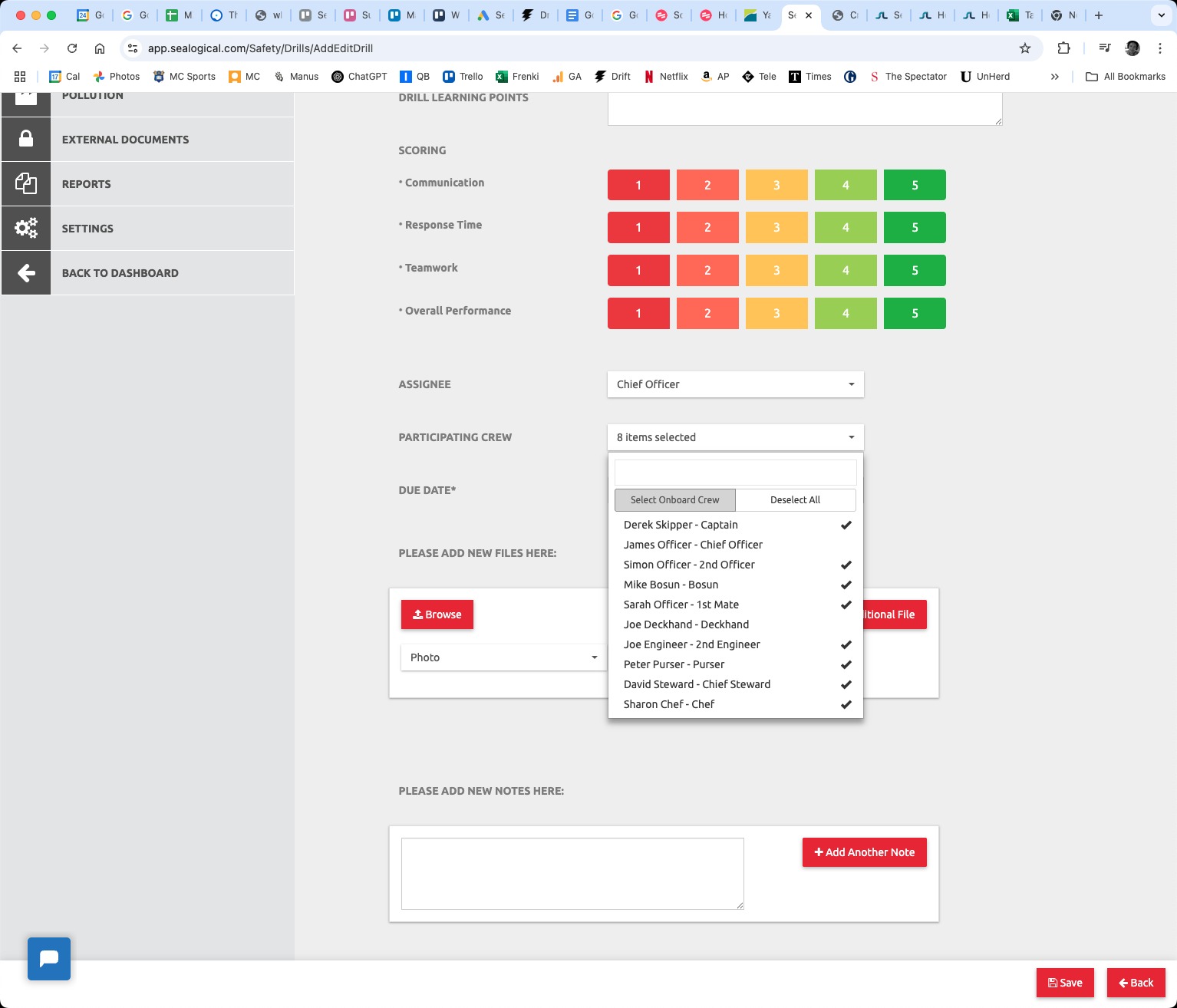
Open the PARTICIPATING CREW dropdown to record everyone who took part. Tick each crew member individually, or use Select Onboard Crew to bulk-add everyone currently aboard. The picker shows position alongside name (Derek Skipper - Captain, Mike Bosun - Bosun, etc) so it's clear who's who when names are similar.
Step 7: Set the due date
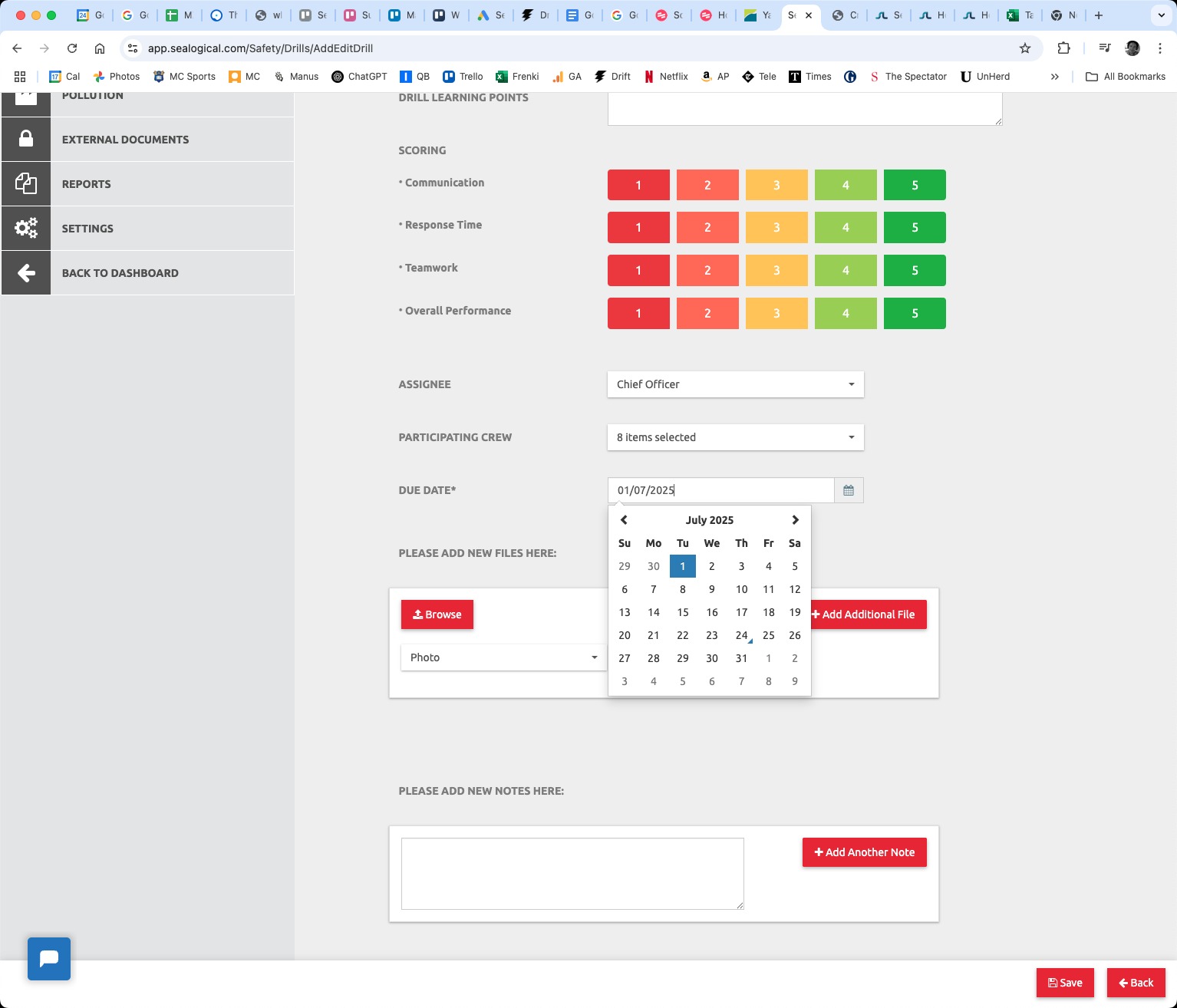
Click the calendar icon next to DUE DATE and pick the day the drill is scheduled for, or the day it took place if you're recording a completed drill. Due Date is required — the form won't save without it.
Step 8: Attach files and notes, then Save
Use PLEASE ADD NEW FILES HERE to attach photos, certificates or any other documentation — the file-type dropdown defaults to Photo, and Add Additional File lets you attach more than one. PLEASE ADD NEW NOTES HERE captures any free-text observations, and Add Another Note adds further notes. When everything is in place, click Save in the bottom-right; the drill is recorded against the vessel and appears on your Drills list.
Frequently Asked Questions
What's the difference between Drill Category, Type and Title?
Category is the broad area — Safety, Engineering, Fire, Helicopter, Liferaft, Medical, Piracy, Pollution, Security or Statutory. Type is a sub-classification within the category. Title is the specific drill name (Man Overboard, Abandon Ship, and so on). Type and Title lists are managed at account level — the + New Type, + Edit Type, + New Title and + Edit Title buttons on the form let you add or rename entries without leaving the page.
Can I save a drill before it's been run?
Yes. Set the Due Date and Frequency now, pick the assignee and participating crew, and leave the scoring, positives and learning points blank. After the drill is run, open the same drill from the Drills list and add the scores, what went well and what was learned.
Who should be the Assignee, and who counts as Participating Crew?
The Assignee is the person responsible for organising and assessing the drill — typically a senior officer such as the Chief Officer, Safety Officer or Captain. Participating Crew is everyone who took part in the drill, or who is scheduled to take part if you're booking it in advance. Both fields support search, and the Participating Crew picker has a Select Onboard Crew shortcut to add everyone currently aboard.
Can I attach photos or documents to a drill?
Yes. The PLEASE ADD NEW FILES section lets you attach photos, certificates or any other supporting files. The dropdown next to each upload sets the file type (Photo by default) and the Add Additional File button lets you attach more than one. Notes are added separately in the PLEASE ADD NEW NOTES section.
What happens after I click Save?
The drill appears in the vessel's Drills list and is included in the Safety reporting. If you set a Due Date in the future, the drill is treated as scheduled until that date passes; once past, the drill is flagged as overdue until it's marked complete with scores recorded.
~ Need more help?
Still stuck?
If you can't find what you're looking for, our support team is happy to help.
Contact Support