How to Add Crew Leave
Record a leave request against a crew member, deduct it from their leave and flight allowance, and send it through for the captain's approval.
HOW LEAVE TRACKING WORKS
Each crew member has a leave allowance and a flight allowance set on their employment record. When you record a leave, the form shows the current balance for each so you can see what's available before deducting. A leave is held as Pending until a senior officer approves it; only then does it come off the balance. Approved leaves can be edited later, but editing triggers a re-approval step.
Step 1: Open the Crew module
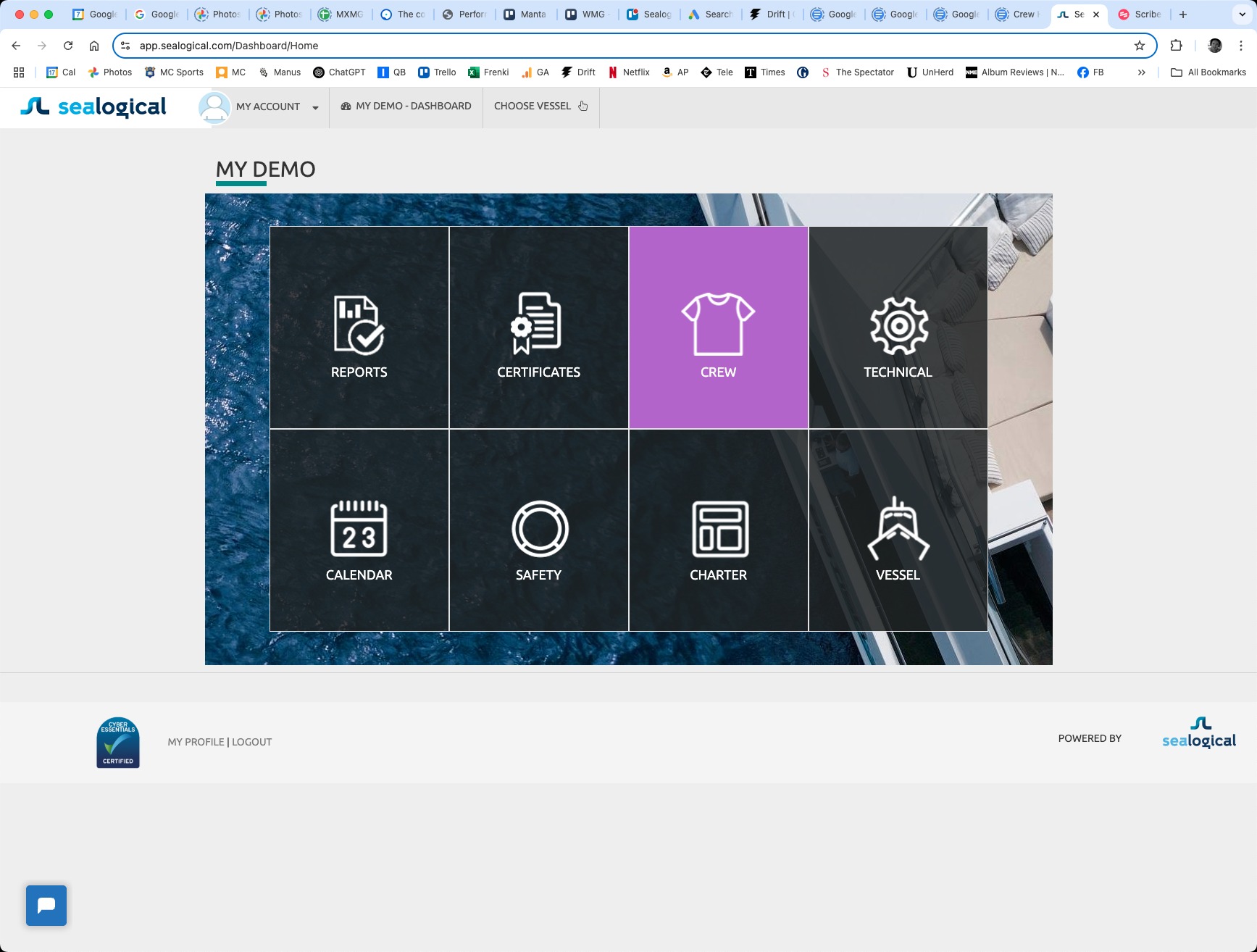
From the vessel dashboard, click the purple CREW tile to enter the crew area for the vessel you're currently viewing.
Step 2: Click Leave Status in the sidebar
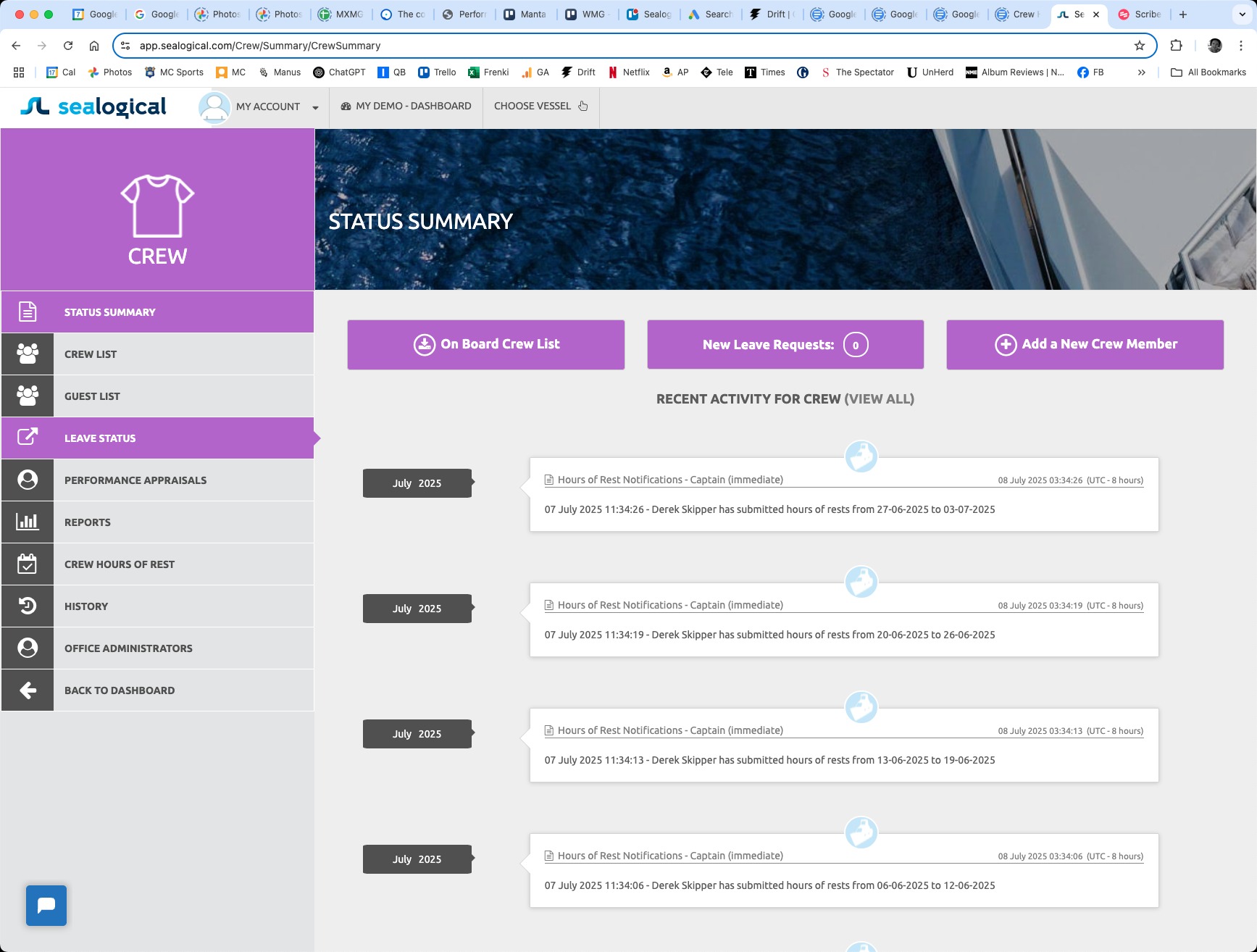
In the Crew sidebar on the left, click LEAVE STATUS. It sits between Guest List and Performance Appraisals.
Step 3: Click + New Leave
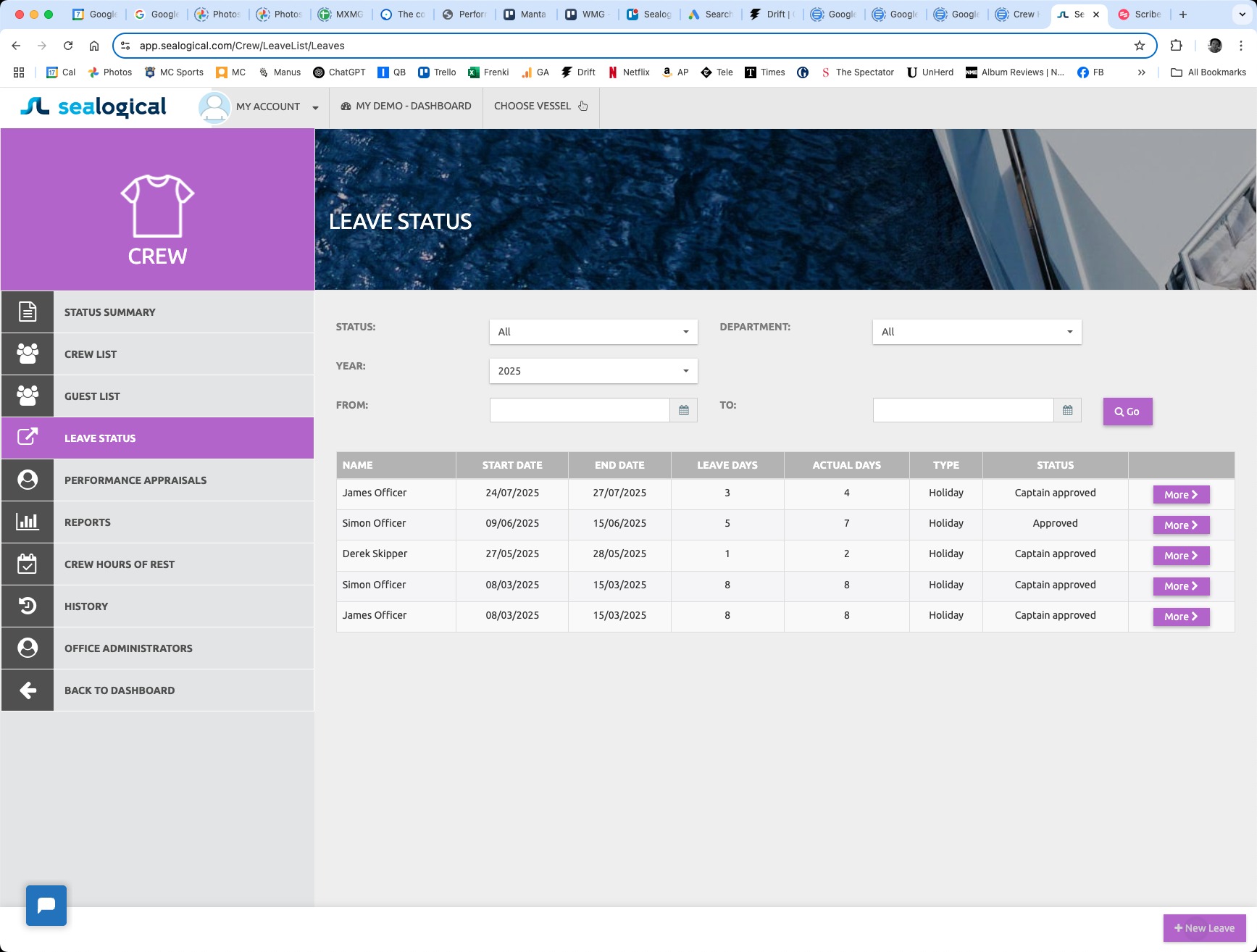
The Leave Status page shows every leave request on the vessel — name, start and end date, leave days, actual days, type and current status (Approved, Captain approved, Pending). To add a new request, click the green + New Leave button at the bottom-right of the page.
Step 4: Select the crew member
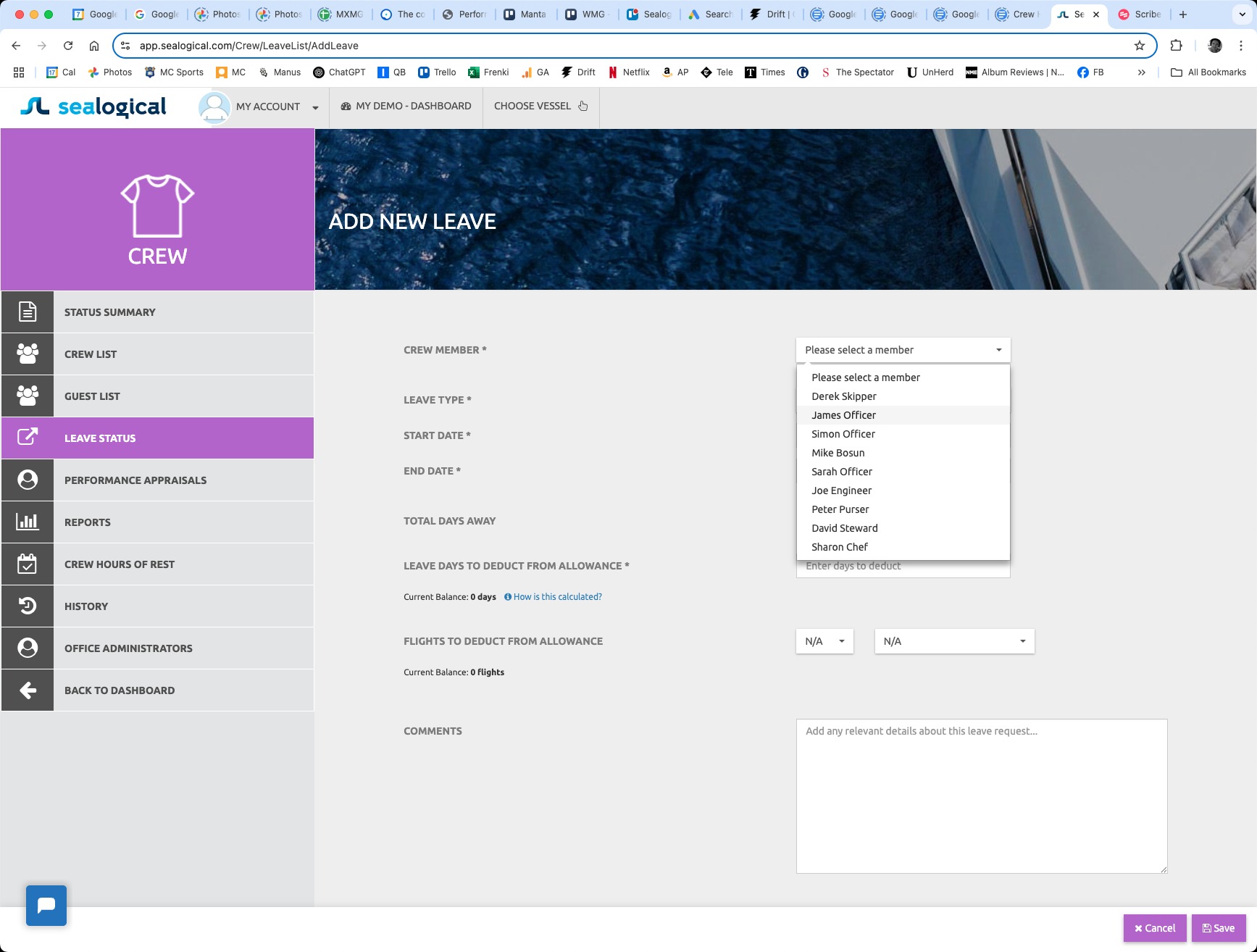
The Add New Leave form opens. Open the CREW MEMBER dropdown and pick the person the leave is for. The form re-loads with their name at the top and pulls in their current leave and flight balances so you can see what's available before deducting.
Step 5: Select the leave type
Open the LEAVE TYPE dropdown and pick the type of leave being requested — for example, Holiday. The list is configured at account level so a Sealogical admin can add or rename types if needed.
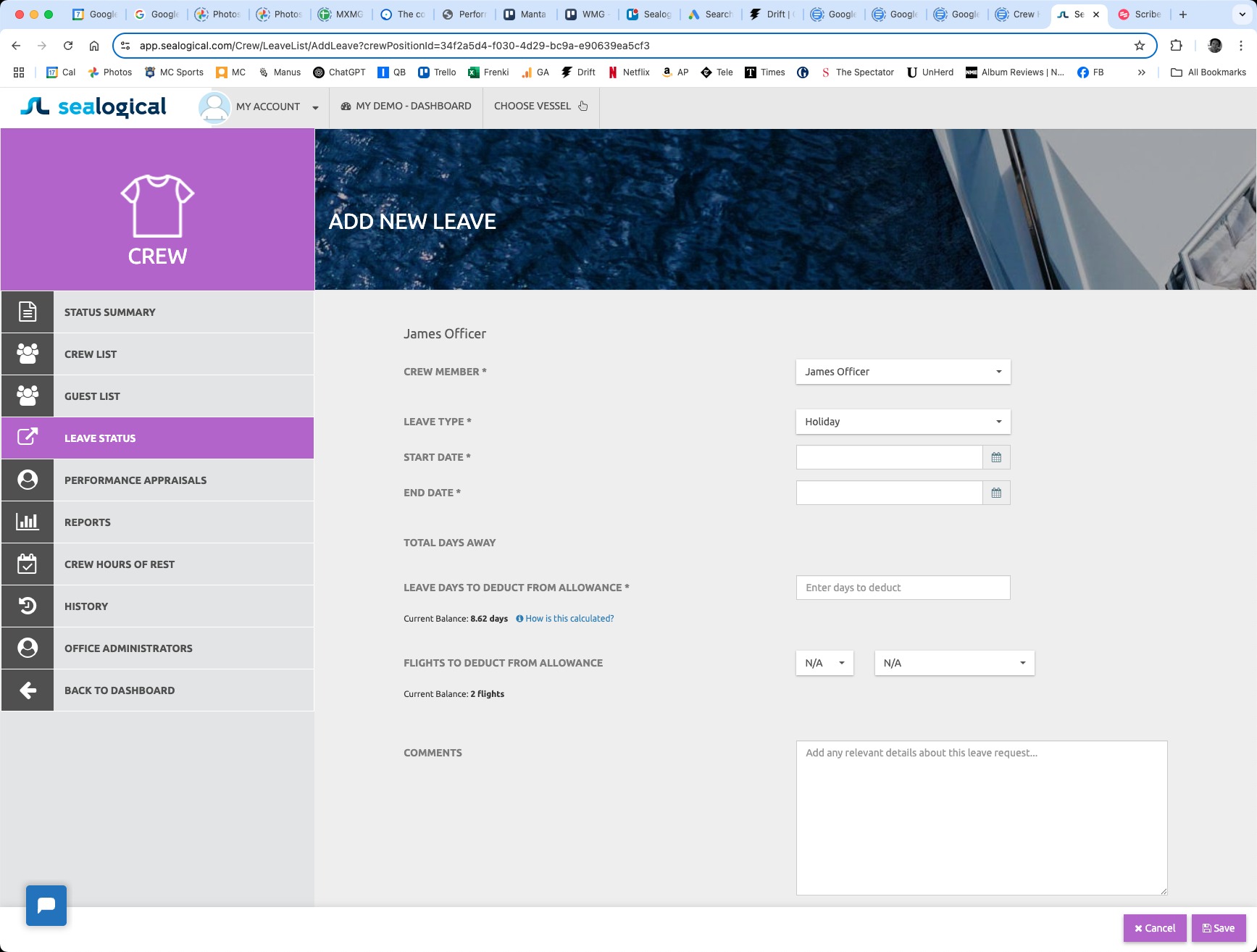
Step 6: Set the start and end dates
Click the calendar icon next to START DATE and pick the first day of leave; do the same for END DATE. Once both are set, the form calculates and displays the TOTAL DAYS AWAY automatically — for example, 11 July to 13 July inclusive shows 3 days.
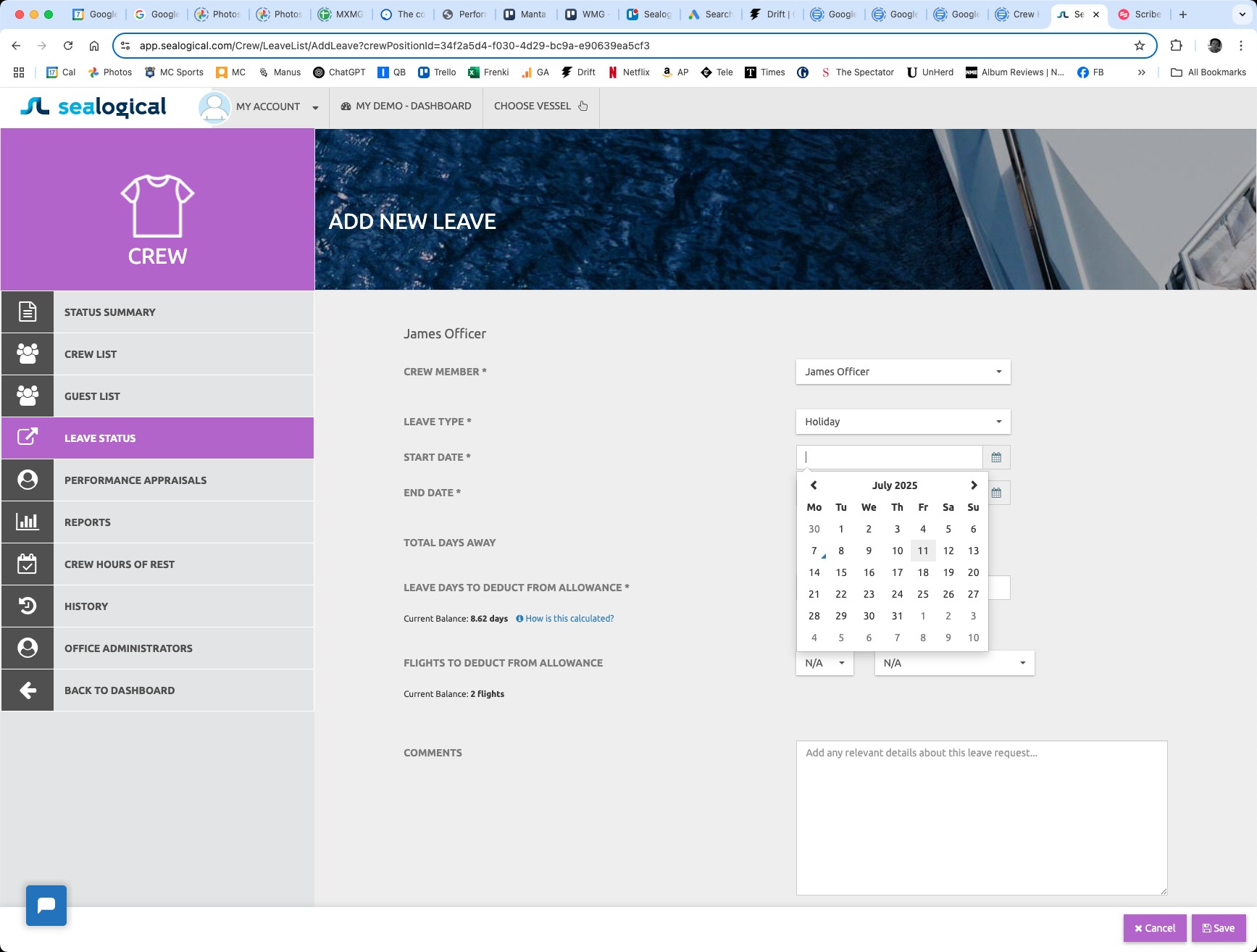
Step 7: Enter days and flights to deduct
Below the dates, enter the number of LEAVE DAYS TO DEDUCT FROM ALLOWANCE — usually the working days within the leave period (which may be fewer than Total Days Away if the period spans weekends). If the leave includes a flight home, set FLIGHTS TO DEDUCT FROM ALLOWANCE: the first dropdown is the count (e.g. 1) and the second is the type (One-Way or Return). Leave it on N/A if no flight is being claimed. Add anything relevant in the Comments field below.
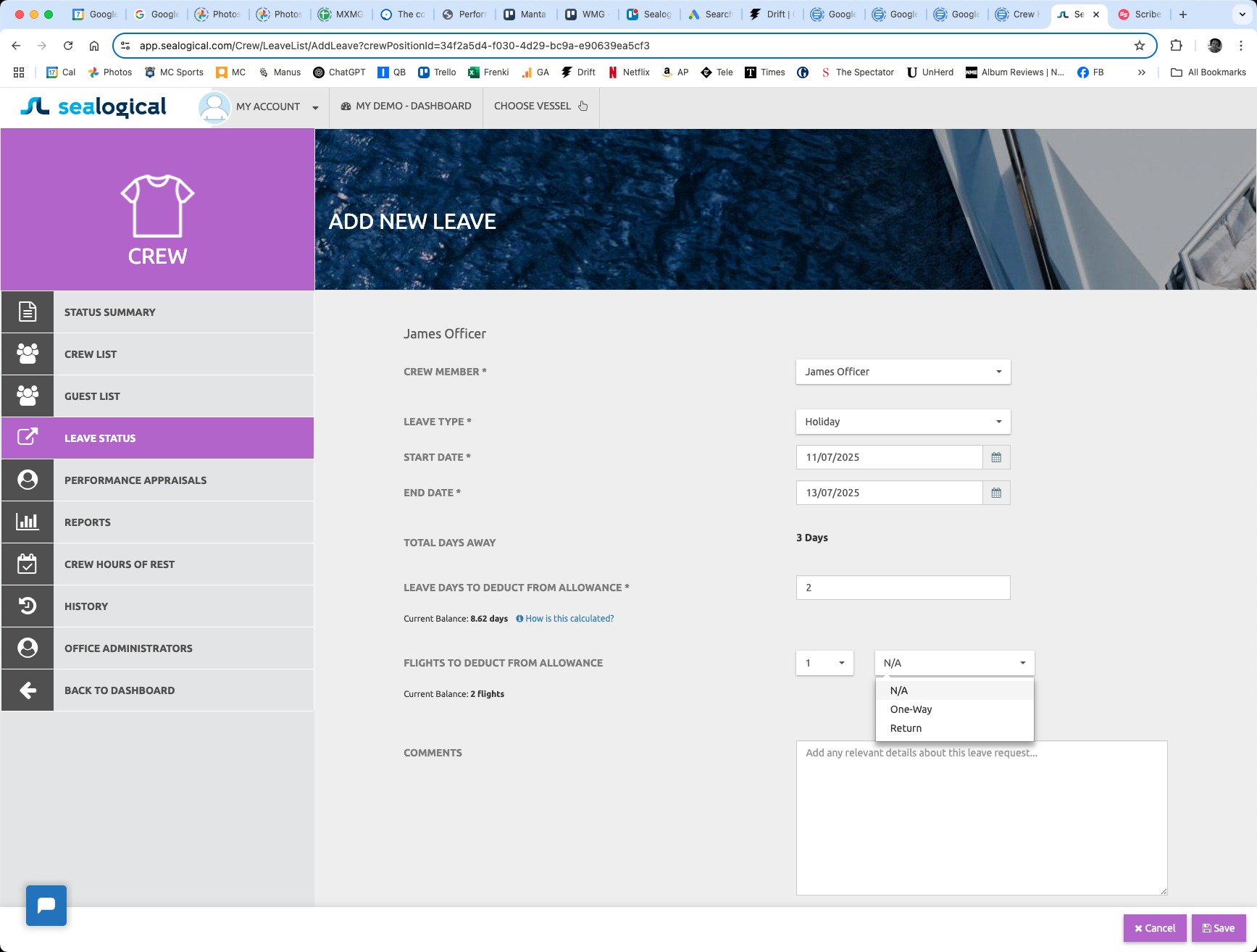
Step 8: Save the leave
Click the green Save button in the bottom-right. A confirmation toast — 'The leave has been saved successfully' — appears at the top of the page, and the leave summary loads with the dates, type and amounts about to be deducted. The leave is now Pending until the captain approves it.
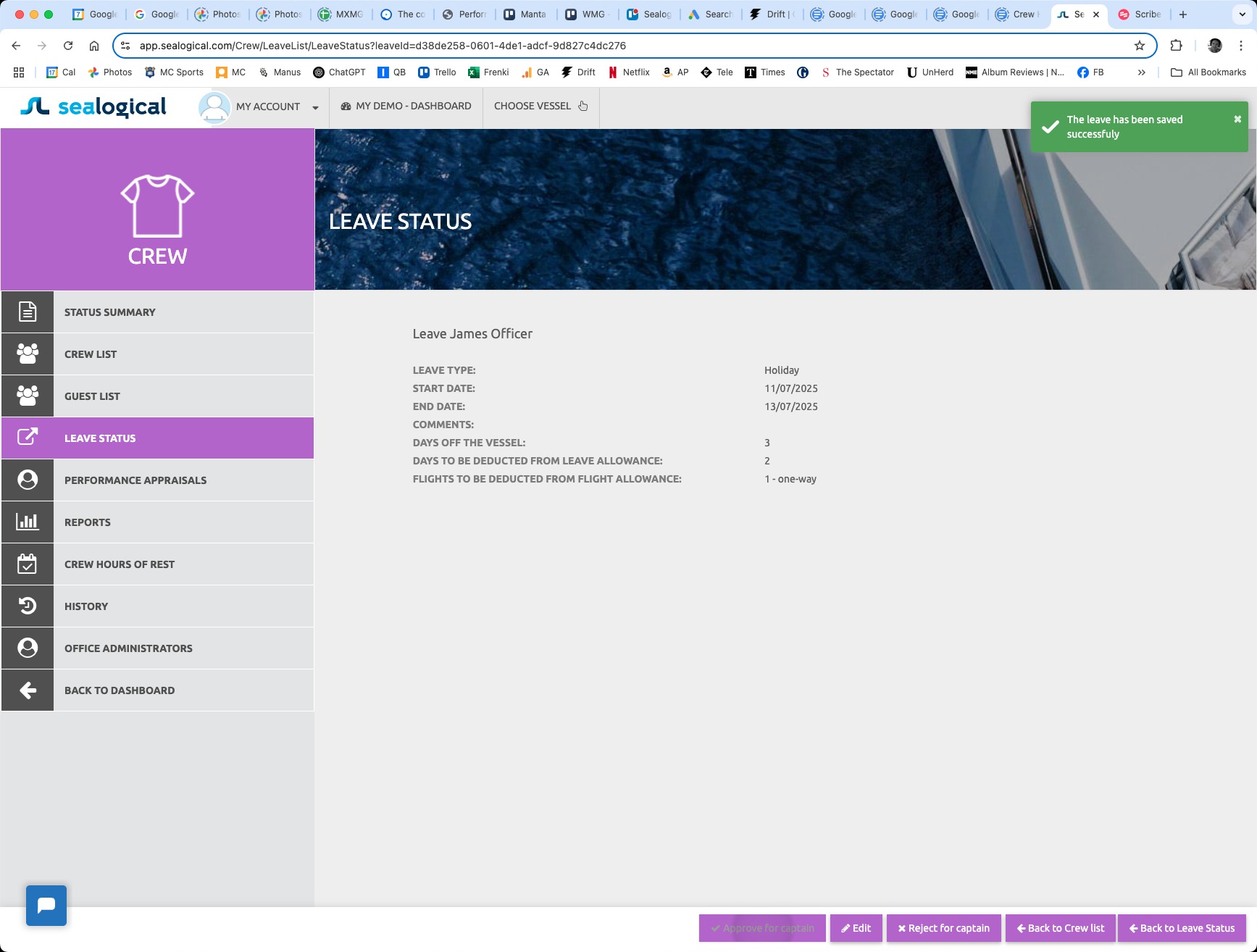
Step 9: The captain approves the leave
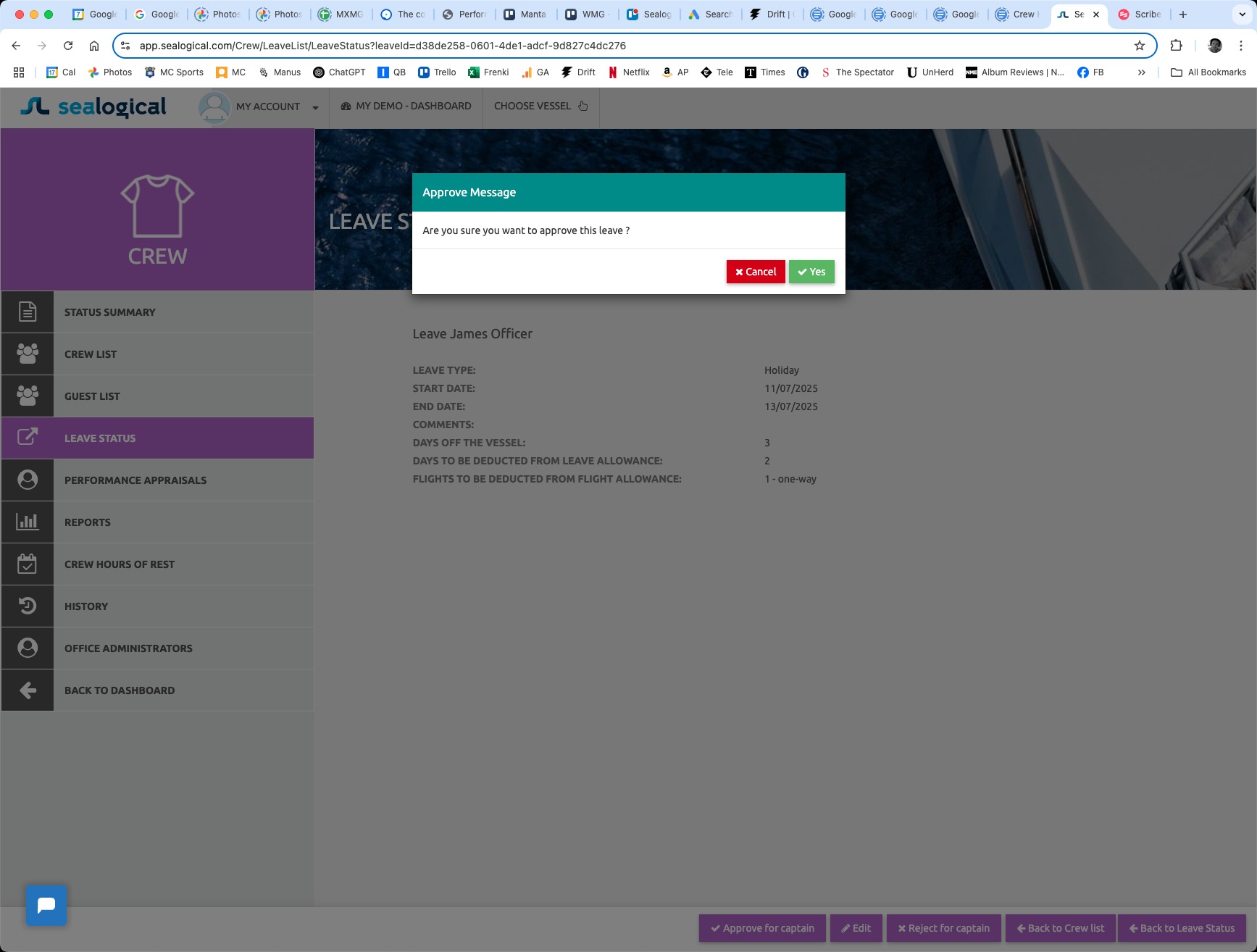
When the captain (or another senior officer with approval rights) opens this leave, the Approve for Captain button at the bottom is enabled. Clicking it opens a confirmation dialog — 'Are you sure you want to approve this leave?' — and clicking Yes finalises the approval. The leave's status flips to Captain approved in the Leave Status table and the deductions come off the crew member's balance.
Frequently Asked Questions
Who can add a leave request, and who can approve it?
Anyone with access to the Leave Status section can add a leave request — typically crew add their own requests, or senior crew add requests on behalf of others. Approval is restricted to the captain or another senior officer with the right Access Level — the Approve for Captain button only shows for users at that tier.
What's the difference between Total Days Away and Leave Days to Deduct from Allowance?
Total Days Away is the calendar span between the start and end dates, including weekends and any non-working days. Leave Days to Deduct is the number of days that should actually come off the crew member's leave allowance — usually fewer than Total Days Away when the period spans non-working days. Setting them separately lets you record the full absence accurately while only deducting working days from the balance.
How does the flight allowance work?
Flights are recorded separately from leave days because most rotation contracts include a flight budget alongside the leave allowance. The first dropdown is the flight count, the second is the type (One-Way or Return). Leave it on N/A if no flight is being claimed for this leave. The crew member's current flight balance is shown beneath the field so you can see what's available before deducting.
What happens after I click Save?
The leave is saved against the crew member's record and a green confirmation toast appears. The leave then waits for captain approval — visible in the Leave Status table with a status of Pending. Until approved it doesn't reduce the crew member's allowance balance — that only happens once the captain clicks Approve.
Can I edit a leave after it's been approved?
Yes. Open the leave from the Leave Status table and click Edit. If the leave was already approved, the form shows a Save and Re-approve button instead of the regular Save — saving will send the updated leave back through approval so the captain can confirm the changes are still acceptable.
What does Reject for Captain do?
It declines the leave request and sends it back as not approved. Use it when the dates clash with vessel programme, the crew member is over-allocated, or any other reason approval can't be granted. The crew member can edit the request and submit again, or another approver can revisit it.
~ Need more help?
Still stuck?
If you can't find what you're looking for, our support team is happy to help.
Contact Support